How to go live on TikTok: requirements, steps and replays

On this page
In short
To go live on TikTok, tap Add post, swipe to LIVE, add a title and tap Go LIVE. TikTok requires you to be at least 18 with 1,000 followers, a number that may vary by region. This guide covers phone and desktop, moderation, LIVE Events and replays.
Key takeaways
- TikTok's Help Center says you must be at least 18 and have 1,000 followers to go LIVE. The follower number may vary across regions.
- On a phone: tap Add post, pick LIVE in the bottom menu, add a title, then tap Go LIVE.
- On a computer, TikTok requires LIVE Studio (Windows) or OBS Studio before you can stream.
- Replays stay in TikTok Studio for 30 days, so you can download or clip the best moments afterwards.
Here's how to go live on TikTok: open the app, tap the + button, swipe the bottom menu across to LIVE, give the stream a title and tap Go LIVE. That's the whole route. If you can't find the LIVE option at all, your account probably doesn't qualify yet, so the requirements come first in this guide.
Everything below comes from TikTok's own help pages and Creator Academy, checked in October 2026. Menu names shift a little between app versions. If a button on your phone reads slightly differently, pick the closest match and carry on.
Who can go LIVE on TikTok?
TikTok lists its rules on the What is TikTok LIVE? help page. They're short:
| Requirement | What TikTok says |
|---|---|
| Age to host | At least 18 years old |
| Followers | 1,000, which may vary across regions |
| Age to send or receive Gifts | At least 18, or 19 in South Korea |
| Where it works | LIVE and Gifts aren't available everywhere yet |
Two more points matter. TikTok says people under 18 are not permitted to host a LIVE at all. It also says it may restrict creators who violate its Community Guidelines from going LIVE.
So if you're an adult with well over 1,000 followers and still see no LIVE tab, the likely causes are your country or a restriction on the account. TikTok doesn't publish a list of thresholds by country, and nobody outside TikTok can confirm which one applies to you.
How to go live on TikTok from your phone
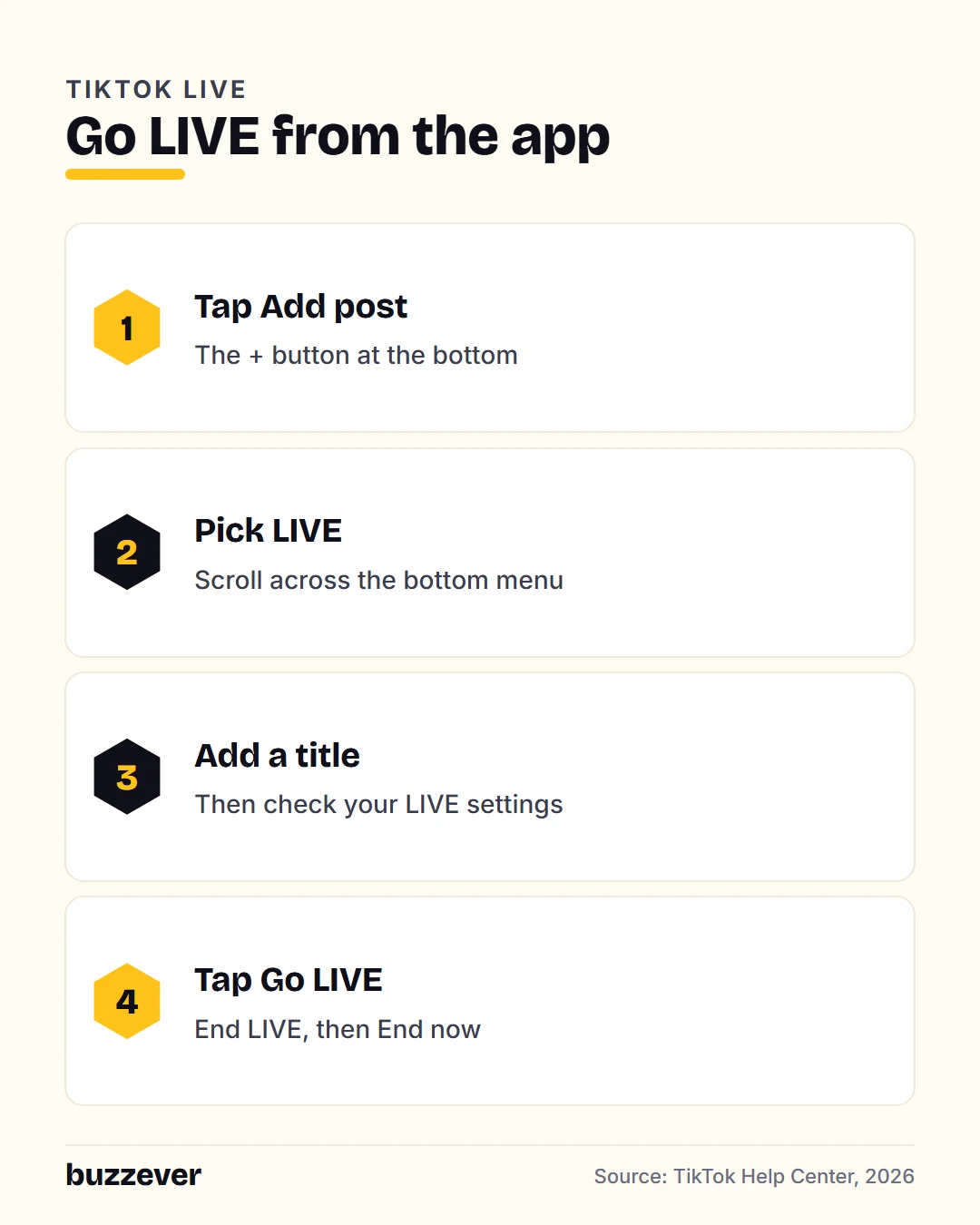
This is the method TikTok describes in its Help Center:
- Tap Add post. The + button at the bottom of the app opens the camera.
- Pick LIVE. Scroll across the bottom menu until LIVE appears. On some phones it sits a few swipes along.
- Add a title. Then check your LIVE settings and the LIVE tools before anyone joins.
- Tap Go LIVE. You're on air. To finish, tap End LIVE, then End now, at the top of the screen.
Want to change something mid-stream? Tap More (the three dots) at the bottom, then Settings. That's where TikTok keeps the safety options too.
Settings to check before the first viewer arrives
The Moderating on TikTok LIVE page lists what you can set up from the LIVE screen. Three settings are worth a minute of your time:
- Moderators. Add a friend you trust. They need your permission, and they can then manage comments and muted or blocked viewers while you talk.
- Audience controls. Turn this on and only viewers aged 18 or over can watch.
- Comment settings. Filter comments and block keywords (plus their variations) so spam never reaches the chat.
During the stream you can tap any viewer in the chat to mute them for a set time or block them from the LIVE. TikTok tells them when that happens. Blocking also stops them reaching you through your posts, profile or messages.
Going LIVE from a computer
TikTok's moderation page is clear here: to go LIVE in a web browser, you must download LIVE Studio (Windows) or OBS Studio (Linux, macOS or Windows). Your moderators don't need either program; they can help from a normal browser.
Why bother with a computer? TikTok's LIVE guide in the Creator Academy says desktop gives you more control, with advanced moderation tools, several cameras and landscape mode. Mobile is the lighter choice for quick streams and multi-guest sessions.
The same guide has three practical warnings. Stream keys expire after a period of inactivity, so generate yours no more than an hour before you start. Logging in to the same account on other devices while you're live can interrupt the stream. And end the LIVE properly before you close the browser tab.
Plan the stream so people show up
A LIVE nobody knows about is a lonely half hour. TikTok's fix is LIVE Events. You create one from the LIVE screen (tap LIVE Center, then LIVE Events, then Create an event), or from TikTok Studio. Viewers can register for it and get a notification when it starts, and the start time shows in each viewer's local time, which helps if your audience is spread across countries.
A few habits help on top of that:
- Pick a time your followers are already on the app. Our free TikTok best time to post tool gives you a starting point, and TikTok Studio shows when your own viewers are active.
- Decide on one format before you start: a Q&A, a tutorial, a behind-the-scenes look. Rambling streams lose people.
- Post a short video during the LIVE or soon after. The Creator Academy suggests this to keep the attention of viewers who already tuned in.
What to do with the replay
TikTok saves every LIVE. According to its LIVE replays help page, recordings stay available to view and download for 30 days. Find them under Profile, the menu button, TikTok Studio, LIVE, then LIVE recordings. From there you can download a replay, clip a section and post it as a new video, or delete it.
Clipping is the part people skip. A two minute answer from your LIVE can work as a normal post, and it shows new viewers what your streams are like.
Then look at the numbers. The LIVE tab in TikTok Studio shows how many LIVEs you ran, total LIVE views and time, new viewers, new followers, unique viewers and Diamonds collected. Compare one stream with the next. Did the Tuesday evening Q&A bring more new followers than the Saturday tutorial? That tells you what to repeat.
Can't go LIVE? Check these first
- Age. The account holder has to be 18 or over.
- Followers. Under 1,000, or under whatever number applies in your region, the option won't show.
- Location. LIVE simply isn't offered in some places.
- A restriction. Look in your inbox for any notice about Community Guidelines.
- An old app. Update TikTok and look again; menus move between versions.
Still stuck? TikTok's Other LIVE hosting issues page tells you to tap Need more help? at the bottom of the help article and submit a ticket. Be wary of any app or website that promises a way around the requirements. TikTok doesn't offer one.
Read next: How much does TikTok pay? What TikTok's Creator Rewards Program really pays on and How to get more views on TikTok, using your own analytics.
Ready for your first stream
Check the requirements, set up a moderator and an event, then go. Your first LIVE will feel awkward; most people's do. The second one is easier. For more on growing on the platform, see Buzzever's TikTok page.
Questions readers ask
How many followers do you need to go live on TikTok?
TikTok's Help Center says 1,000 followers, and adds that this may vary across regions. You also need to be at least 18.
Can you go live on TikTok without 1,000 followers?
Not under TikTok's published rules, unless your region uses a different number. The honest route is to keep posting until you pass the threshold. Tools that claim to switch LIVE on early are not from TikTok.
How old do you have to be to go LIVE on TikTok?
At least 18 to host. Sending or receiving Gifts during a LIVE also needs you to be 18, or 19 in South Korea.
Can I go live on TikTok from my laptop?
Yes. TikTok says you need LIVE Studio on Windows, or OBS Studio on Linux, macOS or Windows, to stream from a web browser.
How long are TikTok LIVE replays kept?
30 days. You'll find them in TikTok Studio under LIVE, then LIVE recordings, where you can download, clip or delete them.