How to repost on TikTok, and how to undo it

On this page
In short
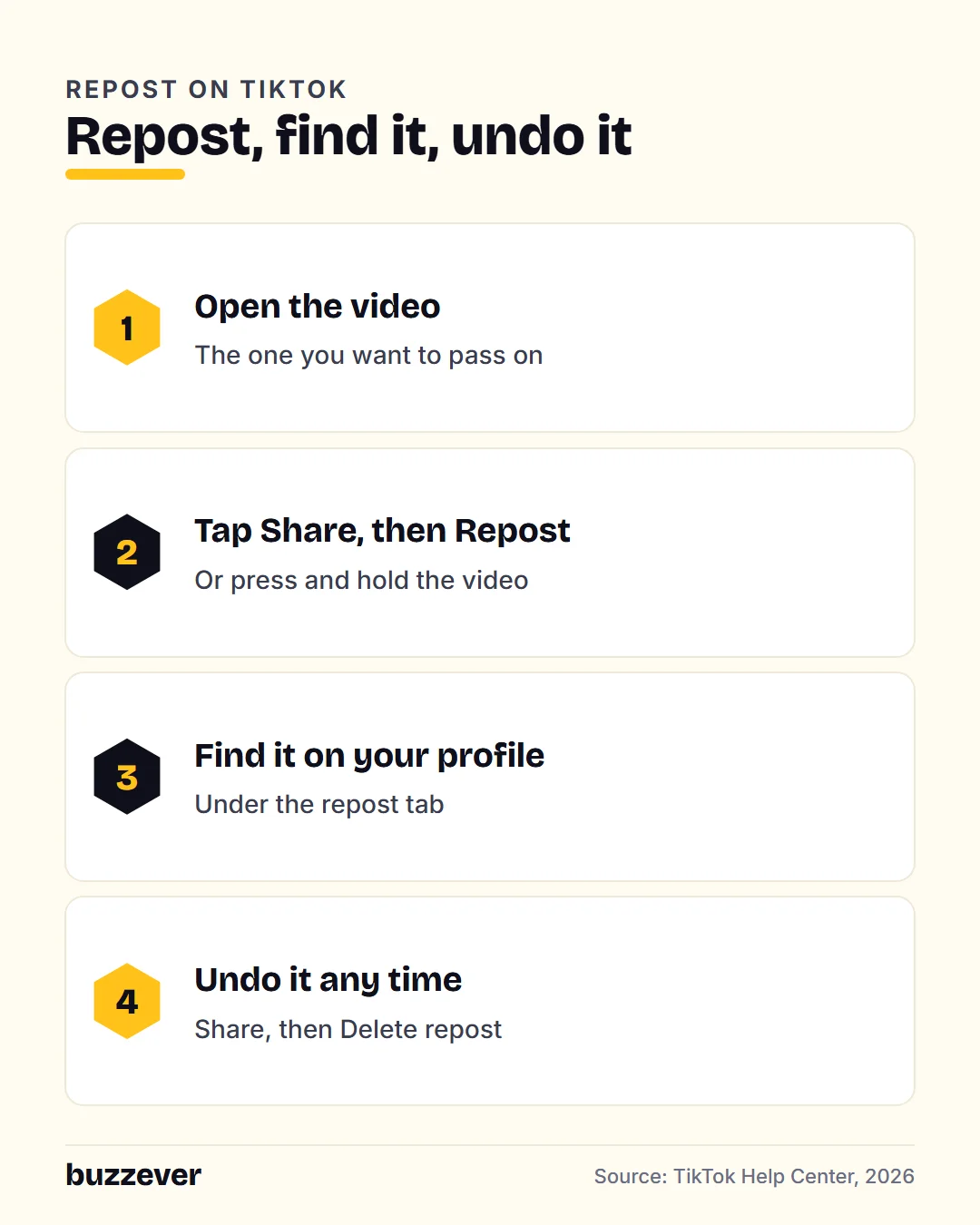
To repost on TikTok, open the video, tap Share, then Repost, or press and hold the video. The repost appears in your followers' For You feed with your name on it. Remove it with Share, then Delete repost, but its replies are deleted too.
Key takeaways
- A repost puts someone else's video in your friends' and followers' For You feed, labeled with your profile photo and nickname.
- To repost, tap Share, then Repost, or press and hold the video. It goes out the moment you tap; there's no confirm screen.
- On a public account anyone can see your reposts on your profile. On a private account, only your followers can.
- Removing a repost also deletes every reply people left on it.
To repost on TikTok, open the video, tap the Share button and choose Repost. Or press and hold anywhere on the video and tap Repost there. Either way, it's done in one tap, and the video starts appearing for the people who follow you.
That's the quick version. The details matter more than you'd think, though. Who can see your reposts, what happens to the replies, and why downloading a clip and posting it again is a worse idea all come down to how TikTok's repost feature is built. Everything here is taken from TikTok's own Repost help page, checked in October 2026.
What a repost actually does
TikTok describes Repost as a way to share posts you find interesting with your friends and community on their For You feed. The video looks the same as any other post in the feed. The difference is a small label showing it was reposted, with your profile photo and nickname next to it.
So a repost is a recommendation with your name on it. You're not copying the video, and the original creator keeps their post, their caption and their credit.
Who sees what you repost
| Your account | Who can see your reposts |
|---|---|
| Public | Anyone who visits your profile can see your reposts, your repost text and the replies to them |
| Private | Only your followers, on your profile and in their For You feed |
One detail catches people out. Your comment privacy settings don't apply to repost replies. If you've limited who can comment on your own videos, that limit doesn't carry over to the replies under a repost.
How to repost on TikTok: three ways
All three start the same way: open the video. Pick the one you want to pass on, then:
- Tap Share, then Repost. The Share button sits on the side of every video.
- Or press and hold the video, then tap Repost in the menu that pops up.
- Or tap a friend's photo. If a friend already reposted it, their profile photo shows at the bottom of the video. Tap it, then tap Repost.
TikTok's own page warns that once you tap Repost, the content is reposted. No preview, no second chance. If you tap it by accident, use the undo steps further down.
Want to check what you've shared? Go to your profile. You'll find it on your profile under the repost tab, alongside everything else you've reposted.
How to reply to someone's repost
When a friend reposts a video, you can answer them right there:
- Open the reposted video.
- Tap your friend's profile photo at the bottom.
- Tap Reply, type your message and tap Send.
It's a handy way to start a conversation about a video without leaving a public comment on the creator's post.
How to undo a repost
You can undo it any time. Open the video you reposted and do one of these:
- Tap Share, then Delete repost.
- Press and hold the video, then tap Remove repost.
- Tap your own profile photo at the bottom of the video, then tap Remove.
Before you remove it, know this: TikTok deletes all the replies attached to that repost too. If a good conversation started under it, it goes with it.
If you only want to get rid of one reply, open the video, tap your profile photo, press and hold the reply and tap Delete. The repost itself stays.
Repost or share? Picking the right button
Reposting and sharing live behind the same Share button, but they do different jobs.
| Option | Where the video goes | Good for |
|---|---|---|
| Repost | Your followers' and friends' For You feed, plus your repost tab | Telling your whole audience "watch this" |
| Share | One person or group, in a message or another app | Sending a video to someone specific |
| Save video | Your phone | Keeping a copy, and only when the creator allows downloads |
According to TikTok's Sharing on TikTok page, when you send a post to a friend on another platform, TikTok also sends it to them inside TikTok, as long as they tap the link and accept messages from others. And Save video only appears on posts whose creator turned download permissions on.
If you want to add your own voice to someone's video rather than pass it on, TikTok points creators to Duet and Stitch as ways to collaborate.
Why not just download it and post it again?
It's tempting. You like a clip, you save it, you upload it to your own account. Here's why the Repost button is the better choice.
First, it isn't your video. Reposting keeps the original creator's name on it. A re-upload strips that away, and many creators turn off downloads for exactly that reason.
Second, it tends to go nowhere. TikTok's recommendation page says it typically doesn't recommend content you've already seen, and in a 2020 newsroom post TikTok said it doesn't recommend duplicated content. A copy of a video your audience already watched is fighting both.
Use Repost for other people's work. Save your own uploads for things you made.
Repost button missing or not working?
TikTok's sharing troubleshooting steps are a sensible first round:
- Switch between Wi-Fi and mobile data.
- Clear the app's video cache.
- Restart the TikTok app and your phone.
- Update to the latest version of TikTok.
If Repost still doesn't appear in the Share menu, try pressing and holding the video instead. Menus differ slightly between app versions, and the long press is a second way in.
Read next: How to go viral on TikTok: what the For You feed rewards and How to get more views on TikTok, using your own analytics.
One tap, used well
Reposting is the quickest way to point your followers at a video worth their time, and it keeps the credit where it belongs. Just remember the replies vanish if you undo it. For more TikTok guides, visit Buzzever's TikTok page.
Questions readers ask
Does the creator know when I repost their TikTok?
TikTok's Help Center doesn't say whether the original creator gets a notification, so we can't tell you for sure. What is certain: your repost carries your profile photo and nickname, so anyone who sees it in their feed knows it came from you.
Who can see my reposts on TikTok?
With a public account, anyone visiting your profile can see them. With a private account, only your followers can, on your profile and in their For You feed.
Where do I find videos I've reposted?
On your profile, in the repost tab.
How do I remove a repost on TikTok?
Open the video and tap Share, then Delete repost. You can also press and hold the video and tap Remove repost. Replies to the repost are deleted with it.
Can I add text to a repost?
TikTok's page mentions repost text, which is visible on public profiles, but it doesn't spell out the steps for adding it. If your app shows a text field when you repost, that's where it goes.