How to start a YouTube channel: a 6-step setup
On this page
In short
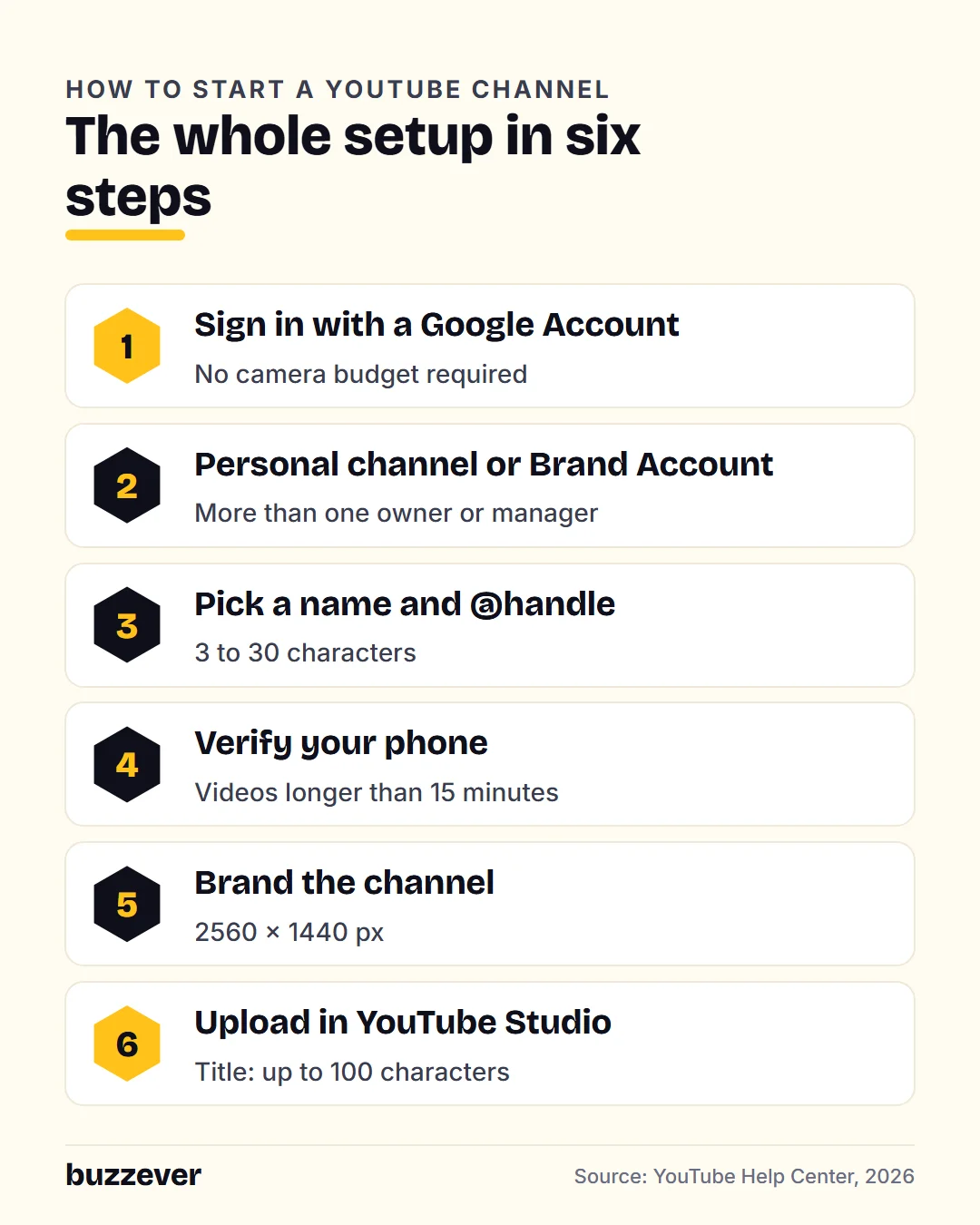
To start a YouTube channel, sign in with a Google Account, create the channel from your settings as a personal channel or a Brand Account, pick a name and @handle, verify your phone, brand the channel and upload from YouTube Studio. Each step follows YouTube Help.
Key takeaways
- Decide first between a personal channel and a Brand Account. A Brand Account lets more than one person manage the channel and can use a name that isn't yours.
- Your @handle must be unique and, for most names, 3 to 30 characters long.
- Verifying your phone number opens up videos longer than 15 minutes, live streaming on a computer and custom thumbnails.
- Set your banner, picture, description and links in YouTube Studio before the first upload, so new visitors land on a finished channel.
If you want to know how to start a YouTube channel, the short answer is this: sign in with a Google Account, create the channel from your settings, pick a name and @handle, verify your phone, then upload from YouTube Studio. That takes minutes. The choices you make along the way take longer to undo, so they're worth a little thought.
This guide follows YouTube's own Help Center, checked in October 2026, and walks through six steps in order. It stops at your first published video. Promotion and monetization are separate jobs with their own guides.
Before you click Create
You need a Google Account. With that alone you can watch and subscribe, but YouTube says you need a channel to upload, comment or make playlists.
Age matters too. YouTube's Terms of Service say you must be at least 13 to use the service, and anyone under 18 needs a parent or guardian's permission. Younger children can only use YouTube or YouTube Kids if a parent or guardian enables it. If your account runs as a supervised experience, YouTube warns you may not be able to create a channel at all.
That's the whole list. No camera budget required.
Step 1: Personal channel or Brand Account
This is the choice people regret most, because it decides who can run the channel later.
A personal channel is tied to your own Google Account, and only you manage it. A channel with a business or other name sits on a Brand Account. YouTube describes it as a channel that can have more than one manager or owner, and it can use a name that's different from the name on your Google Account.
| Question | Personal channel | Brand Account |
|---|---|---|
| Who can manage it? | Only you | More than one owner or manager |
| Channel name | Usually your own name | A business or any other name |
| Good for | A solo creator who'll never hand over access | A business, a team, or anyone who might add an editor later |
| Where it lives | Your own Google Account | Its own Brand Account, one channel each |
Our view: if there's any chance someone else will help you upload, reply to comments or edit, pick the Brand Account now. You can add people without ever sharing your password.
Step 2: Create the channel
A personal channel
On a computer or the mobile site, YouTube's steps for a channel that only you can manage are:
- Sign in to YouTube.
- Select your profile picture, then Settings.
- Under Account, choose the option to add or manage your channels.
- Select Create a channel.
- Add a profile picture, a name and a handle.
- Confirm, and the channel is created.
A Brand Account channel
- Sign in on a computer or the mobile site and open your channel list.
- Create a new channel, or pick a Brand Account you already manage. If that Brand Account already has a channel, you can't make a second one on it.
- Choose a picture, a name and a handle.
- Select Create channel. This also creates the new Brand Account.
- Add owners and managers from the Brand Account settings.
Step 3: Pick a name and @handle
Your channel name is what people see. Your handle is the short address that starts with @. YouTube calls handles short and unique channel identifiers, separate from the name.
The rules are short. Most handles must be 3 to 30 characters. They can't look like a URL or a phone number, can't be offensive or spammy, can't already be taken, and each channel gets one. Some scripts have different limits; Japanese kana, for example, allows 2 to 20 characters.
Say the name out loud before you commit. Can a stranger spell it after hearing it once? If you're stuck, the free YouTube name generator gives you a list to react to, which is often easier than starting from a blank page.
Step 4: Verify your phone
A new channel starts with standard features. YouTube's feature eligibility page splits the rest into two more levels.
| Level | How you get it | Examples of what you get |
|---|---|---|
| Standard | Create a channel with no active Community Guidelines strikes | Upload videos and Shorts, make playlists, use the Posts tab |
| Intermediate | Verify your phone number | Videos longer than 15 minutes, live streaming on a computer, custom thumbnails, podcasts |
| Advanced | Channel history, or verify with a valid ID or a short video | Clickable links in descriptions, pinned comments, chapters, applying for monetization |
Do the phone step on day one. It's a text message code or an automated voice call, and YouTube says verified accounts can upload videos longer than 15 minutes, up to 256 GB or 12 hours, whichever is less. Custom thumbnails alone make it worth the two minutes.
Step 5: Brand the channel
Everything here lives in YouTube Studio under Customization, then Profile. YouTube's branding specs are worth following exactly:
- Profile picture: JPG, GIF, BMP or PNG, no animated GIFs, up to 15 MB. It shows at 98 x 98 px, so a face or a simple logo reads best.
- Banner: at least 2048 x 1152 px. YouTube recommends 2560 x 1440 px, file size 6 MB or smaller. Keep text and logos inside the middle 1235 x 338 px safe area, or TVs and phones may crop them.
- Description and links: say who the channel is for and what they'll get. You can add up to 14 links; the first one appears near the subscribe button.
One small thing people miss: a name or picture change on YouTube only shows on YouTube, not across your other Google services.
Step 6: Upload in YouTube Studio
On a computer, open YouTube Studio, select Create, then Upload videos. You can pick up to 15 files at once. For each one:
- Title: up to 100 characters. Put the words people would search for near the start. The title length checker shows how much will fit.
- Description: up to 5,000 characters. The description length checker helps you keep the first lines tight.
- Thumbnail: available once you've verified your phone. Check the right dimensions with the thumbnail size guide.
- Audience: you must say whether the video is made for kids. This one is a legal requirement, so answer it honestly.
- Visibility: Private, Unlisted or Public, or schedule it. A scheduled video stays private until its date.
Creators aged 13 to 17 start with uploads set to private by default. Adults start with public. Either way, check the setting before you press publish.
What comes after the first upload
A channel with one video is a start. Getting people to watch it is the next job, and the YouTube Partner Program has its own rules. Both are covered in the guides on Buzzever's YouTube page.
Read next: How to promote a YouTube video: a launch plan and YouTube monetization requirements in 2026: both levels explained.
Set it up once, properly
Choose the account type, claim a handle you like, verify your phone and finish the profile. Then upload. Ten careful minutes now save you from rebuilding the channel later.
Questions readers ask
Is it free to start a YouTube channel?
Yes. You need a Google Account and nothing else. Creating the channel, uploading videos and using YouTube Studio cost nothing.
How old do you have to be to start a YouTube channel?
YouTube's Terms of Service set the minimum age to use the service at 13, and users under 18 need permission from a parent or guardian. Supervised accounts may not be able to create a channel.
Can I have more than one YouTube channel?
Yes, by using Brand Accounts. Each Brand Account holds one channel, so a second channel means a second Brand Account. YouTube's help page doesn't give a fixed number per Google Account.
Why can't I upload a video longer than 15 minutes?
Your account isn't verified yet. Verify your phone number by text or voice call. After that you can upload videos of up to 12 hours or 256 GB, whichever is less.
Can I change my channel name and handle later?
Yes, both can be changed in YouTube Studio under Customization. A new handle must follow the same rules and can't already be in use. Pick carefully anyway, because viewers learn your handle quickly.